Showing posts with label information technology. Show all posts

Tuesday, February 12, 2013

Infographics: Going Digital with Data

Tech Tuesday:  Students as Information Consumers and Creators

Inviting students into the research process is sticky, I know.  Most of the time we shy away from research, dreading that inevitable paper to grade.  But, what if we approached research with our students from a different stance?  What if-- instead of the monster once-a-year Research Project--we considered an embedded approach?

When we invite students to adopt an inquiry stance in our classroom, research becomes a part of our daily dialogue.  Asking questions, searching for information, browsing, collecting, evaluating, publishing--these are all processes in the inquiry classroom that work on varying scales.  

Our students are bombarded with information 24/7/365.  They forget (never learned) how to be curious and critical consumers.  An inquiry stance to learning taps into our natural curiosities, building upon content area knowledge in relevant and authentic ways.   A simple infographic (informational graphic) might make more of a lasting impression upon a student and his learning experience than a five page research paper or report. 

How is it done?  Invite students to collect and categorize data for authentic purposes.  In science, what if a lab experiment resulted in a graphic representation of the reactions, observations, and data students collected?  In English, invite students to identify a problem in their community, create a survey, and then publish their findings through a dynamic, visual platform.  Math lends itself particularly well to integrating infographics through embedded bar graphs, line graphs, pie charts, and percentages.  Pose a problem for students to consider, asking them to transfer their findings into a digital display, or invite them to be problem-posers.


Created at www.piktochart.com to publish the library's statistics for January

Free Infographic tools such as Piktochart provide templates and tools for students to synthesize information and publish it digitally.  Not only are they collecting and consuming information, but they must synthesize what it means in order to create a visually dynamic representation. 

American Association of School Librarians (AASL) NETS-S


3.1.1 Conclude an inquiry-based research process by sharing new understandings and reflecting on the learning
3.1.4 Use technology and other information tools to organize and display knowledge and understanding in ways that others can view, use, and assess


Tuesday, December 18, 2012

Twitter 101 for Librarians and Teachers


Why do we as librarians and teachers need to come to terms with Twitter?  View the Prezi above created by myself and Diana Colby, library media specialist at Keller ISD's Early Learning Center, for a peek at our own Twitter journey and steps to take that Twitter plunge.  

In the beginning, it was helpful for me to think of Twitter in terms of library lingo.  For example, what is this "@" business?  In Twitter, users select a "handle" or ID preceded by the ampersand.  If we think of Twitter as a massive OPAC (online catalogue), then each user has a main entry...that main entry is their "handle."  For example, Twitter users can search for me with the 100 tag @audreyw222.  Furthermore, the Twitter "catalogue" can also be accessed through hashtags (#thisfunnystringofwordsembeddedintweets).  Hashtags allow searching for a specific topic or subject accessible for users.  The hashtag in the Twittersphere is the subject heading in library land's OPAC.

Making anymore sense?

Needing more convincing?  Check out this month's issue of Library Media Connection for the article, "Twitter Tips and Tricks for Your Library and Classroom" by media specialist Melissa Purcell.  In this two-page spread, Purcell dissects, describes, and defines the microblogging social media tool and decodes the mystery behind that little blue bird for classroom teachers and librarians.  The article contains a glossary of twitter terminology, top ten reasons to incorporate Twitter, suggested Twitter handles for libraries and classrooms to follow, popular hashtags, and links to access blogs and documents that explore ways Twitter is coming home to roost in libraries and schools.  

We are in the middle of a communication revolution as people now share intimate details of their lives as fast as they can type.  In this mobile world, everyone can have their voice heard in an instant with few technical skills.  Twitter is used by millions of people every day to discuss their lives and the news of the day.  The dated one-way flow of information from book or website to patron just does not work for patrons anymore; they need to interact with their information, and Twitter provides a platform for that interaction.  Now is the time to embrace the free technology tools that our students are already using and incorporate those tools into our lesson plans for a true educational experience (Purcell, 2012).


Tuesday, December 11, 2012

Adventures in iPads: Initial Deployment Woes and the Sites that Saved My Sanity


The Adventure Begins...

Well, we've gone and done it.  Fossil Ridge has taken the iPad plunge.  Last week I had the pleasure (along with my faithful helper, Mme. Morgan) of unwrapping, setting up, and synchronizing thirty iPads for the Ridge.  Now, this process was not nearly as neat and productive as you might first think.  Before we deploy our iPad fleet for classroom use, I wanted to provide some background and explanation for how multiple iPad devices are managed in schools and on our campus.


First of all, when Steve Jobs and Apple first conceptualized this laptop-mobile device, they did not anticipate it would have such a tremendous draw in education. In his 2010 keynote in which he introduces the new tablet device that would revolutionize the mobile device industry and technology in education, Jobs discusses the need in the market for a "third category device" one that blends the portable, compact quality of the iPhone with the speed, productivity, and functionality of a laptop. Jobs does not mention anything about a vision for the devices in institutions, including education.  His presentation continues as he highlights the iPad's unique features that allow the user to create a highly personalized experience (email, iPhoto, background, etc.).


10 Biggest Questions about iPads in the Classroom

Schools immediately jumped on board the iPad boat, purchasing the hot commodity for teachers and students.  In fact, the very next day journalists and educators were speculating on the impact the iPad will have on education.  Flooding the app market for education specific tools that would engage students at higher levels of thinking, creating, collaborating, and sharing.  Apple, however, was not prepared for the education market, and so when schools ran into issues regarding deployment,  the mobile device company that focused on a personalized experience for its customers needed to do some back-pedaling to consider how to support a  multi-user educational platform.

[Enter site #1 that helped me wrap my brain about iPad deployment in schools]

http://www.scoop.it/t/ipadsineducation 
A collection of deployment guides and resources for schools including a presentation on the role of iPads in schools, Apple's VPP program, and integrating technology into instruction.


The Scoop It site led me to this fantastic  collection of resources realted to iPads in K12 education curated by Kathy Schrock.  There are lots of lists of suggested apps generated by multiple schools.

Kathy's site led me to the graphic on the left from an article posted on Edudemic.

Oh, the rabbit trails are endless!


But I digress...back to our deployment.


Initial roadblocks...

1)  iPads are designed to be unique and personalized for their users--the functionality of the iPad (synchronized email, contacts, calendars, apps, iTunes, etc.) does not transfer to school models where iPads are used by multiple students. 

2)  iPads are designed to be managed through a home computer, one at a time--Schools who purchased thirty or more iPads for classroom use struggled to painstakingly sync and manage each device, one at a time--a very lengthy and monotonous process (speaking from personal experience).  Today, we have a MDM (multiple-device-manager) and a nifty little application that allows a school's device manager (me) to upload content and manage multiple devices at one time--Apple Configurator. 

Not only do we now have an application that cooperates with iTunes so that the devices can be managed all at once, but we have a nifty piece of hardware that stores, charges, and syncs them all, too!

3)  Purchased apps are intended for personal use, with the understanding that they may be shared on a handful of devices in a home or family--In the beginning, educators and schools got away with a lot.  Schools created an iTunes account, purchased a single license app for 2.99 and then loaded it onto thirty or more iPads.  Apple got smart to their ways, however, and implemented volume purchasing for institutions.


http://wafflebytes.blogspot.com/2011/11/ipads-in-classroom-volume-purchase.html
Now you may be asking, "why the heck do we need to understand all of this, Audrey?  Just give us the devices and let's do it!" 

It's important to understand the intention behind the iPads and the process we use to manage and distribute them so that you can better implement them in your classes, taking full advantage of their potential. 

So, here's a little narrative of the process that involved the initial set up and deployment of our iPads, including the top sites and resources that saved our sanity and provided us with a healthy little collection of apps ready for classroom use!

They are here!

Confession--the iPads have actually been on our campus, sitting in boxes in my secret storage space for longer than a week or two.  But before you clench your fists and wave them at me understand that the process of unwrapping, setting up, and syncing the iPads is nothing like the process a personal user undergoes.  This was not a project I could spend five or ten minutes at a time between my other duties and roles.  I needed a solid day, with my office and the library closed, to immerse myself in the tools and processes I mentioned above.  (Yay, for STAAR retesting!) 

With the library closed and my faithful helper, we went about the task of unboxing, unwrapping, labeling, and plugging in all thirty iPads into the Bretford PowerSync Cart.  This took us a little over an hour.

Ummm...everything is plugged in, why aren't the dang things charging?

PowerSync Cart
And here was obstacle #1 in the great 2012 iPad deployment.  We unplugged and replugged any chord and outlet we could find, flipped the switch on and off, unplugged the cart, and repeated about five times.  I called my fellow librarians who I thought had the same cart...they didn't.  I got on the website for Bretford and found their support form...I was not about to sit and waste my time waiting for an automated response from an electronic form...a little more digging and we came across an actual phone number. 

The solution?  Easy-peasy.  Remove the bottom dividers, reach back, and jiggle the power cord to the cart, plug in the wall, flip the switch...and voila!  We had power.  This took about another hour of our time.

Two hours into our deployment day and we hadn't even started the iTunes process.

It's helpful when you have a working iTunes account.

Obstacle #2--no access to iTunes.  It seems that our campus iTunes account (which had never been used) had been tampered with, and we needed a new account.  Well, this involves setting up a new Outlook email account, which involves calling 1200, which involves waiting for 1200 to decide who the job should go to, which ends up being the "mail" team, otherwise known as the "male" team (no offense guys)--who is notorious for dragging their heals and taking their time.


How the heck do we get all of these tools to play nice?

While waiting to hear back about iTunes, we read and re-read, and read again the directions on using Apple Configurator and the Bretford PowerSync cart. [Enter website #1 that saved my sanity].
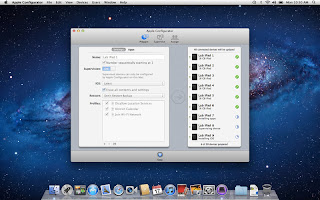
Our iTunes delay did allow us to think about the profile we wanted to create for the devices.  Apple Configurator not only allows you to upload and manage the content on the iPads, but it also allows you to enable and disable its features to create profiles.  For example, the student profile we pushed out to all 30 iPads allows for use of Safari, the built in camera, and it is automatically connected to the Student wifi.  Students cannot, however, change the wifi settings, delete or purchase apps, or access iCloud or photo stream.  Nice!

With a few minor interruptions involving COW carts, students sneaking into the library, and lunch we were still waiting on that Apple ID so we could register the devices and download content!

While we are waiting...what ARE we going to put on these things?

Thank goodness for Mme. Morgan's type A personality.  The two of us split up and scoured blogs, Pinterest board, websites, and Twitter for lists of recommended apps for education. 

[Enter in several more sites that helped us further explore iTunes and the world of apps]

http://appsineducation.blogspot.com/p/maths-ipad-apps.html
apps organized by content area

http://www.educatorstechnology.com/2012/06/blooms-taxonomy-for-ipad.html
apps organized by Bloom's taxonomy

http://pinterest.com/gcisdtech/ipads/
Pinterest board for iPads in the classroom maintained by GCISD
Apple's own iPads in education page.

Ning for iPad educators.  Includes deployment plans, blogs, apps, tutorials, and more!

the MEGA collection of all things iPad for teachers, students, and schools.  Click on the tabs and subtabs across the top.  LiveBinder is a virtual three-ring binder.  Cool tool.
  
Another MEGA collection of 50 resources (links and apps) for iPads


Here's the final result (also posted on the Fossil Ridge collaboration site): our beautiful spreadsheet.

But...still waiting on iTunes.

Finally, let's load these babies!

With the assistance of Lisa Ham, Aron Rister, and Tomi Deevers, our new and improved iTunes account arrived at the end of our deployment day.  It took less than an hour to download all of the-preselected apps.  It took another hour (the next day) to do the initial set up and registration for all thirty devices and then sync and load the apps from iTunes.

Final touches...

Our final step in preparing the devices for initial use involves manually organizing the apps by functionality and content onto screens so that they are classroom ready.  This step must be done one-by-one...thank goodness for savvy student aides!

And the final product:


Home Screen

Read and Explore

 
Social Studies


Foreign Languages


Science


Math


Language Arts
Stay tuned for more adventures in iPads!

Tuesday, October 30, 2012

Tech Tuesday: The Flipped Classroom

Tech Tuesday:  The Flipped Classroom 

(heads-up to the new buzz word coming down the pipe)

Are you flippin' kidding me?!  Yet another buzz-word, topic of discussion for faculty meetings, initiatives, seeds, pilots...they just never end do they :-)  Nor should they!

I, too, tired of the endless onslaught of programs, anachronisms, and pilots, but let's keep some perspective and remember that the business of education cannot become static.  It is in our best interest to continue reflecting, examining, and being critical of the practices and tools we bring to our students.  Do they truly represent the demands and learning styles of a digitally-savvy generation?

Today I present you with a little nugget of an idea that a few of you have already started to nibble at:  the flipped classroom.

Here's some food for thought:


Don't you just love infographics?!  They make blogging so easy :-)

Is this idea entirely revolutionary and unique?  No, there are many other names and variations out there (front-loading, anticipation guides, schema theory,  VESTED).  What might be novel to some folks is the idea of employing technology as a tool to do these things.  The infographic touts some impressive (and hard-to-believe) statistics for one flipped school.  I'd be very curious to see this tried in one class for one week. My Big Campus is a terrific fit for this approach with the extensive Library resources, ability to upload YouTube videos, and learning tools such as discussions, chats, and assignment.

Heck, I'll even pitch in and help gather resources and organize the content into MBC!  Take me up on it, seriously, let's see what happens just for one week...

For dessert, visit Khan Academy, and take a little test drive for some possible videos you could use as part of a flip:

http://www.khanacademy.org/

I even grabbed one for the electoral college to re-post just to tickle your taste buds...


Wednesday, October 17, 2012

Tech Tuesday: Apps for Animation

Tech Tuesday:  GoAnimate and Sock Puppets


A few weeks ago, Jennifer Morgan, French teacher extraordinarie, came to me with an idea.  "How," she asked, "could I take advantage of one of these animation apps that I've found to engage my students in tasks that require them to use their conversation skills?"

Jennifer already had the free app, Sock Puppets in mind, as one tool, but she also wanted an option for students who did not have smart phones or tablets that they could bring to class.  We determined that the best way to bridge the technology gap would be to find a web-based animation application, similar to Sock Puppets that allows students to create characters, establish a setting, and record their voices for the dialogue.  GoAnimate.com provided several free templates to create animated scenes.

I've asked Madame Morgan to be my guest on the blog this week, and she graciously accepted. 


Here is our conversation as we reflected on her use of apps to support students in reaching their learning objectives:

What were your instructional goals for this project?

 My students needed to take a spoken test to show they could carry on a basic conversation in French.  By creating a video, they actually were able to show more of their knowledge, because they performed both sides of the conversation.  These videos were able to show me their ability with the language and the pronunciation of French.


Why did you choose GoAnimate and Sock Puppets?

Sock Puppets is the Apple app – both programs allowed students to record their voices onto pre-made characters to create short videos.  Both programs had different parameters, and I really liked both of them.  Sock Puppets will actually change the student’s voice (they can set it to go higher or lower) and that was really fun for them.  Also, Sock Puppets allows 30 seconds of recording time in the free version.  GoAnimate, on the other hand, didn’t have a time limit, but instead limits students to only 10 lines of dialogue.  In order to include all the required parts of conversation, my students definitely had to get a little creative!  GoAnimate does not alter voices, but it has a wide variety of settings for the videos, and you can change the emotions of the characters.

Can you tell us a little about how you prepared your students to use the apps?
               
 I had created a few samples on each program that I showed my students before they got started.  Then during class I also projected the program and showed them how to get started, up to how to record their voices.  After that, I pretty much let them work on their own – and most of them didn’t need any additional support.  Those that did I was easily able to help.


What obstacles, limitations, or surprises did you encounter?

I had booked the COWs [computers on wheels] for two days, “just in case” and boy did we need BOTH days!!  Neither of the programs we used allow you to save your work and edit/add to it later, so most of my kids spent the first day choosing their characters and settings, and testing out the program they were using.  Then on the second day they were able to come into class, get their device and start recording their final project right away.

Overall, how do you feel the use of these tools impacted student engagement and learning?  Will you use them again

 I think doing the conversations digitally was really fun for the students, and therefore they were definitely engaged in the process.  The videos also made the process much less stressful for my shy kids, as they tend to get intimidated by spoken tests where they have to approach me one-on-one.  Those type of tests still have their place, but this was a great alternative.  As a teacher, I personally really enjoyed many of the videos my students produced – they were really funny, so it was also more enjoyable for me to grade than having them come up to my desk one-on-one.  Although it took two class periods to complete, it would have taken that long for me to do spoken tests, and it was much easier to grade since I could re-play the videos at will.

What are the benefits to using applications and web 2.0 tools for animation?

  • engages students in the learning process as they synthesize content into a digital story
  • supports collaboration between students through the writing process:  brainstorming, story-boarding, drafting, revising, publishing
  • a task with an identified audience of their peers, other students, YouTube, etc. provides relevance along with rigor
We'd love to hear your thoughts regarding possible extensions and adaptations of this project in your content area!  Feel free to leave any questions or thoughts for Mme. Morgan as well.

Wednesday, October 3, 2012

Glolgster...not your ordinary poster project.

Tech Tuesday #6:  Glogster--Virtual Posters


Thanks to a very unwelcome visit from the stomach-flu fairy, I missed yesterdays Tech Tuesday posting :-(.  So this week I am presenting Tech Tuesday on Wednesday!

Everyday I have teachers ands tudents asking me about technology tools for class presentations.  They are eager to move beyond the traditional stand-and-present poster project or click-and-read PowerPoint (this makes my heart happy).  Today I present Glogster, an interactive poster creator.  Gloster allows the creator to create a mash-up of video, images, text, and graphics to create a virtual poster.  View the VoiceThread tutorial below for a basic introduction of the educational version of glogster (edu.glogster.com).


Ideas for Glogs:
  • Book reviews
  • Advertisements
  • "About me" presentations
  • Compare/ Contrast ideas or topics
  • Illustrate concepts
  • Extend and Deliver in VESTED

Have you or your students glogged?  Tell us about it!

Tuesday, September 18, 2012

VoiceThread: Online Collaborative Presentation Tool

Tech Tuesday #4:  VoiceThread


We've all been there.  Sitting in a meeting, our eyes start to cross, ears start tuning out as another PowerPoint presentation clicks, clicks, clicks through various slides.  Not that PowerPoint isn't a terrific tool to present information, but with all of the options for today's students to synthesize and publish information in unique ways, perhaps we should begin to consider it as an option rather than the default.

Today we're exploring a free, web-based tool that allows students to create video presentations by mixing images, videos, documents, presentations, and comments (voice and text).  VoiceThread (voicethread.com) allows the user to create a project and share it with collaborators.  They can then create a project together but remotely, solving the problem of when and how they will find the time and resources to create a presentation in a single file. 


To demonstrate the various tools and uses for Voice Thread, Here's a VoiceThread on VoiceThread! 


What possibilities do you see for VoiceThread with your students?  Leave us your comments :-)

Tuesday, September 4, 2012

Remind101: A Safe Communication Tool for Students, Parents, and Teachers

 Technology Tuesday #2

Yesterday, I was at my parents' house for our Labor Day smorgasbor. My niece Kylie, a high school senior, received a message on her phone during dinner (not an uncommon phenomenon in our family).  Our conversation continued as normal while she flipped to her text message screen.  "Oh, good," she said, "I'm glad she reminded us."  Immediately, my ears tuned-in with the topic of today's blog fresh on my mind.  Something told me I was witnessing an example of the exact tool I hoped to share with you for this installment of Tech Tuesday.  I decided to be nosey and ask her about the message.  She turned the screen my direction and sure enough, I was right!  From an unidentified number, the message read, "Don't forget to bring your ASL II textbook to class tomorrow."  


Signing up is free and easy!

Kylie was eager to tell me all about the ways that her ASL teacher was using this new website, remind101.com.  The site is a free tool for educators that allows them to send messages via text to their students through an private number.  Privacy is retained on both ends of the message;  the student does not have access to the teacher's private phone number, nor does the teacher know the students!  Cha-ching! In addition to texts, students and parents can receive messages through email. I asked her what the class thought of the tool, and she shared that her classmates loved it and wished that all their teachers used it. 


Create classes with custom tags.
 students enroll themselves through text or email. 
Select which classes will receive the message.
You can even tell it when to send the message
 if you want to schedule them in advance.

I hear a lot of rumbling from colleagues about communication with students.  Often times, teachers are "encouraged" to use district-created sites that are burdensome and difficult to maintain to communicate with students and teachers.  While ideally, all teacher pages would be networked through the same service, contain the same features, and tools, these sites can be just as difficult for students and parents to access, involving multiple "clicks" and browsing to locate an individual teacher's page.  The reality is that teachers want  to get information to their students and students want to be informed.  Distributing your pesonal phone number to students, although convenient, may not always be the safest way to maintain communication.  Many districts have created privacy policies that prohibit teachers from contacting students through personal numbers or Facebook pages, citing federal privacy laws. (See more about Texas' student privacy laws and FERPA

Students feel connected to their teacher when they recieve updates, reminders, and announcements through text or email.  The teacher is "speaking their language."  For educators, remind101 allows them to distribute information quickly and safely while complying with privacy laws and policies. 


With Open House right around the corner, you might consider setting up your classes on remind101 and invite parents to subscribe.  The website provides .PDF handouts with your customized information that can be distributed to parents and students.  There is very little work for the teacher when creating classes as students and teachers subscribe themselves to a class using a customized number and code.   

When communication is clear, concise, and consistent, students are free to engage in learning rather than becoming bogged in the amount of information and tasks distributed to them over the course of a school day. Parents, too, appreciate the free-flow of information as stakeholders in their child's education. Remind101 is one of many free services that helps students become task-managers and supports their success.

A video tutorial is available on Vimeo for Remind101. 


Curious about other web-based tools that can support communication and even be integrated into instruction?  Check out Twitter!

Quentin Donellan's Blog about using Twitter as an instructional tool.


Tuesday, August 28, 2012

Prezi and QR: The Next Wave of Information Delivery

Tech Tuesday #1

Welcome to the first edition of Tech Tuesday!  Each Tuesday I will post a blog that highlights technology tools for instructional use.  This week, I thought we'd take some time to explore two tools that I shared with the staff at Fossil Ridge High School as part of library orientation:  Prezi and QR Codes.

Both of these tools have the potential to engage an audience by disseminating information through Web 2.0 tools and smart apps.  Both are free (whoop!) and both are rather intuitive for the presenter and the audience.


Click on the logo to go to the site


Prezi

Prezi has taken the 20th century PowerPoint presentation into the 21st Century by creating a program that is web-based--enhancing accessibility for creators--and adding dynamic layers, motion, and animation to present a variety of media and information.  Imagine an animated mash-up of your best PowerPoints, videos, images, and text and voila!  Prezi. 

You might consider using a Prezi when introducing a new concept, unit, or theme (Think "view" in VESTED).  Even a three-four minute "viewing" could jump start students' natural curiousity and help to build background.  Open House is coming up soon; play with transforming your PowerPoint into a Prezi to wow your parents.  Using the html code, you can even embed your Prezi on your class web page to provide an engaging introduction.

Students can use Prezi as a vehicle to synthesize information and create original presentations through a "mash-up" of media .  Since it is online and free, access is open to all students.  Students can collaborate to create the Prezi together on their own devices whether from home or at school. Prezi has also created an iPad app that allows the user to download and view shared and saved presentations.  The editing feature, however, is limited and not very conducive to enhancing the presentation through the iPad.

To get staretd, go to Prezi.com, create an account and watch a couple of their easy-to-follow video tutorials.  Start small and give yourself plenty of time to become comfortable with the tool before trying it out on an audience.

Check out some of these teacher Prezis for more ideas!

Class Introductions:

Jazz History


Quick Response "QR" Codes


QR codes are customizable barcodes that allow the presenter to provide quick links to online resources such as pages, videos, blogs, forms, etc.  To create a QR Code, go to one of the several QR Code Generator sites such as:
After pasting in a link, the generator will provide you with a downloadable .jpeg or .png file that can be inserted as an image into a document. QR codes can even be scanned off of a screen during a presentation (you might remember the funny looking barcode at the end of my library orientation presentation).

Your audience can then use their smart phones to scan the code and go directly to the information.  All they need is one of several free QR Reader apps:
Different apps are available for various cellular devices (Android, iPhone, etc.). 

What type of information works well with QR Codes?  Online forms, videos, blogs, teacher websites all work well on smart phone devices.  You might stear clear from using QR codes on smart phones for pages that include a lot of visual information or text as they can be difficult to read on a phone unless the site has a mobile version.  QR codes work great when integrated with instruction to respond to surveys and forms or to quickly link students to class pages and frequently used sites.  One school last year posted their individual class websites on each teacher door at open house.  Parents scanned the QR code and automatically received contact and class information to their devices.

Check out this article from t.h.e Journal showcasing one high school science teacher's experiences with integrating mobile device technology and QR codes into his classroom.

We are continually bombarded with information delievered in innovative and engaging ways.  Rather than rowing against the tide, let's harness a few tools to help our students be more critical consumers who can create new solutions and innovations as a result of the unlimited amount of information at their fingertips.

Have you used a Prezi or QR code in your class?  We'd love to hear about your successes and struggles in the comments below!